Advanced JShell Usage
Overview
You can use jshell to evaluate code using Java's standard APIs, but you can also prototype programs
that require external dependencies, define a sequence of snippets and jshell commands in a file and pass it to the tool.
This tutorial covers how to work with JavaFX in jshell, using predefined scripts or creating your own, and finally how to produce a
jar file inside a jshell session.
Load External Libraries to JShell
In a jshell session you can prototype code that needs external libraries, and you can set access to those through the class path (--class-path).
To illustrate how you can achieve that, let's build in a jshell session a visual tool that evaluates the type of Java expressions using JavaFX and the JShell API.
You will need a JavaFX SDK to achieve the next steps in this tutorial, so make sure to check out the download section of
the JavaFX series and find out how you can obtain one.
JavaFX is a standalone component and builds on top of a Java Development Kit and you can use its components in a jshell session by adding each to the classpath:
or in an existing jshell session you can run:
Yet, starting with Java 9 you can import JavaFX as modules through --module-path option:
Or, in an existing jshell session just invoke:
Let's create the visual tool with JavaFX using the jshell editor:
and copy-paste the following code:
The above code allows you to input an expression (eg Boolean.TRUE) and see its type upon pressing ENTER on your keyboard.
In the visual editor click Accept and then Exit. In your command line you will observe the following message:
All that is left to do in order to try the tool is to instantiate it:
and call its main method:
You should see an application similar to:
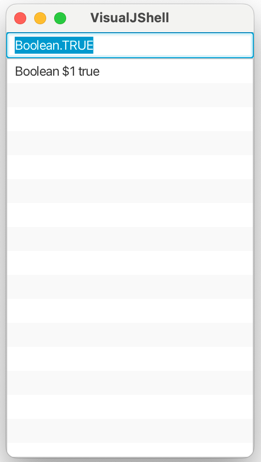
Next, let's see how you can save your work in a jshell session and reuse it in the future.
Create and Load Custom JShell Scripts
In your jshell session, you can choose to save the current active snippets:
The content of your setup-visual-jshell.jsh script would look similar too:
Now you may exit your jshell session with:
jshell has a series of predefined scripts, as detailed in its commands.
You can set these default scripts at the startup of your jshell session:
or invoke them while in an active jshell session:
Yet, you can choose to save the entire history of the snippets and commands, both valid and invalid by running the following command:
As there is a saved setup-visual-jshell.jsh script, you can load it when starting a new jshell session by running:
As a result of running the previous command(s), you will be able to launch once again the visual tool and modify it, if needed.
⚠️ Be careful when executing remote scripts in
jshell: you should only load a remote script from a site you trust!
Finally, let's create a jar file in a jshell session and launch it whenever you need it.
How to Use JDK Tools Inside JShell
A series of JDK tools are available in a jshell session by invoking the TOOLING script:
To verify what tools are available, you can invoke the tools() method:
and your output would be similar to:
In jshell, you can run an arbitrary tool by passing its name and command-line arguments to the run(String, String...) method:
You can also run a tool by using its dedicated wrapper method (eg javac(String...)) and passing command-line arguments:
To further make an executable jar file from previous code, let's create the following directory hierarchy locally:
Next, let's reset the current history and state:
and then ask jshell to enter edit mode:
And once again copy-paste our VisualJShell code:
and then save your work into the src/example/VisualJShell.java file by running:
According to JEP 220: Modular Run-Time Images a snippet cannot declare a package or module. Yet you will further use JDK tools that need that package declaration, so you should add it in a text editor:
This exercise aims to create a jar file for a modular application, so you'll need a module-info.java file in your src/ folder with the following content:
As the jshell session was reset, you should open again the TOOLING script in order to use available JDK tools:
Let's compile our VisualJShell.java and module-info.java:
You can now create the jar file that you will further use to run the application:
To test the result of your efforts, go to another terminal window and run the following command:
Congratulations! Now you have an executable jar that you can run whenever you need it.
More Learning
Last update: August 13, 2024